Appearance
Create account
The first time you open HRsency Lens, the app shows Create Account. Use Already have an account? Login on that form to open Sign In for an existing company.
You can also reach Create Account from Sign In.
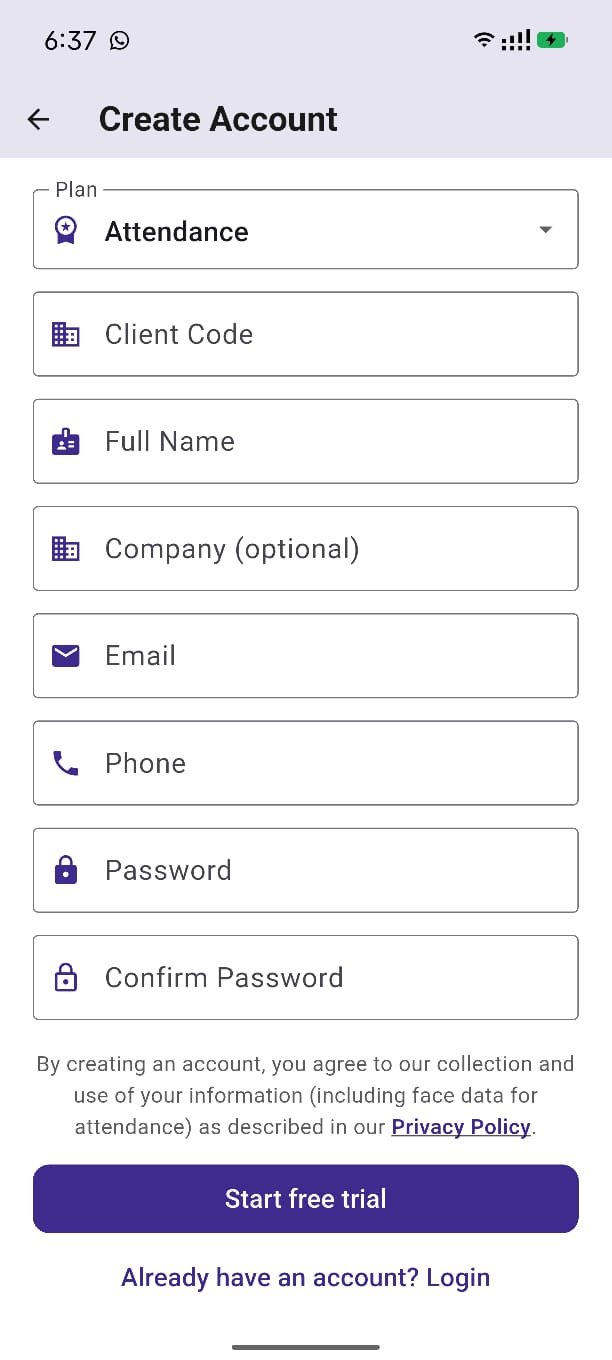
Choose a plan
| Plan | What happens |
|---|---|
| Attendance | Starts a 7-day free trial and opens the app after you submit. Button label: Start free trial. |
| Payroll | Creates the request only. The account stays inactive until C9INFOTECH sets it up. A message says a sales executive will call you. Button label: Submit. |
Fields
| Field | Rule |
|---|---|
| Client Code | Your company code. Letters, numbers, and hyphens only. You will type this again every time you sign in. |
| Full Name | The person creating the account |
| Company | Optional |
Must include @. This is the sign-in username. | |
| Phone | Required |
| Password | At least 6 characters |
| Confirm Password | Must match Password |
Creating an account agrees to the Privacy Policy, including use of face data for attendance.
Already have an account? Login opens the sign-in screen. Use the same Client Code, Email, and Password you created. Do not create a second account for the same company.
After Attendance signup
- The app shows that the 7-day free trial has started.
- Set a 4-digit MPIN.
- Allow the camera if you have not already.
- The attendance camera opens.
Sign in later with the same Client Code, Email, and Password.
After Payroll signup
You return to the sign-in screen. You cannot use the camera until the payroll account is activated. Use Sign In after C9INFOTECH confirms it is ready.
Next: Install & first login · License.