Appearance
LAN display
The phone can host a webpage so a PC or another phone on the same Wi-Fi can see punches and reports. This is the kiosk page.
Turn it on
- In the app, open Settings → Local Network Display.
- Turn on Enable LAN server.
- When Android asks, tap Allow on notifications.
- A persistent notification appears: HRsency Lens / LAN server address.
The server does not start if notifications are denied. The notification must stay. Do not force-stop the app. The phone can sleep; the notification keeps the server running.
Default port is 8080. Change it and tap Apply if that port is already used (1024–65535).
Open the page
- Connect the other device to the same Wi-Fi, or to this phone’s hotspot.
- In Settings, copy the address (
http://IP:port). - Open it in a browser and sign in.
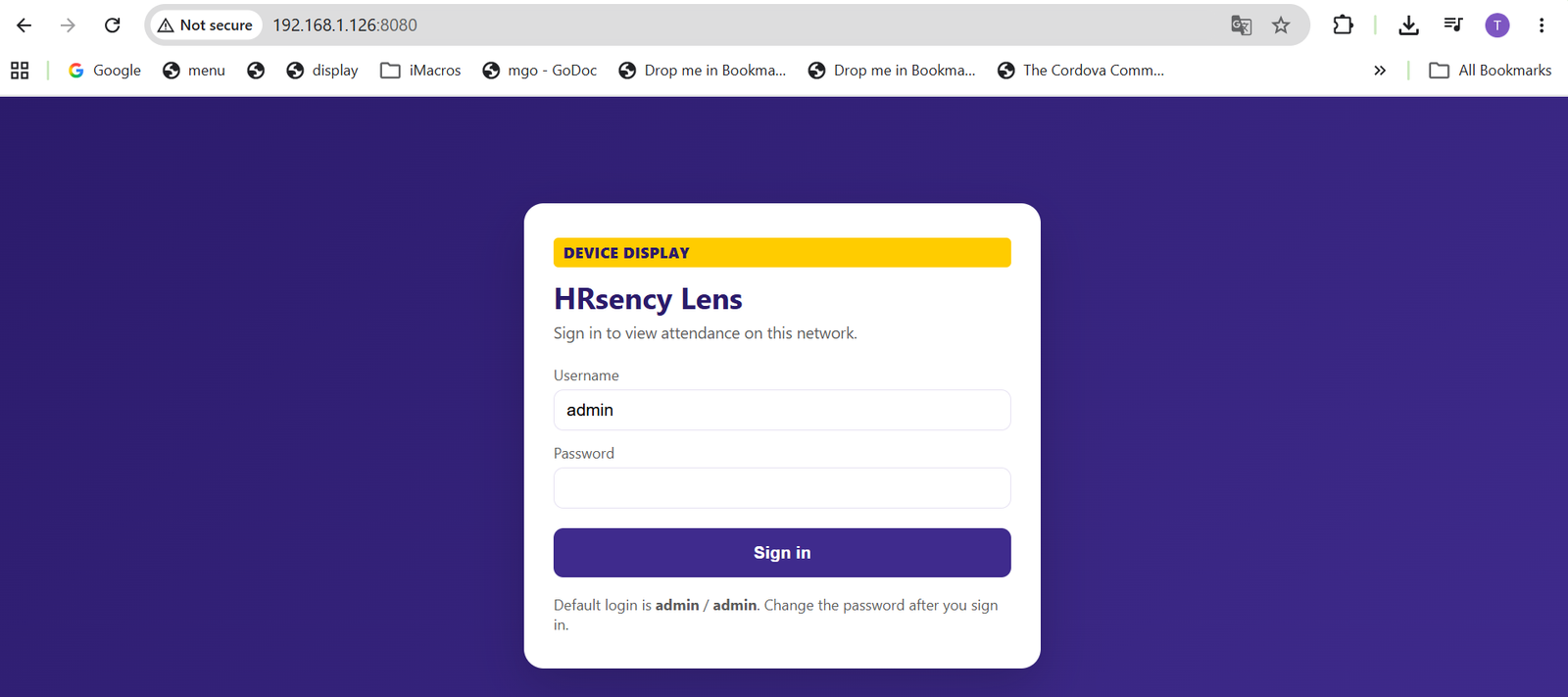
Kiosk sign-in
The webpage has its own login. It is not the app email and password.
| Field | Default |
|---|---|
| Username | admin |
| Password | admin |
Change this after the first sign-in. Anyone on the same Wi-Fi can open the page.
Change the password
- Sign in.
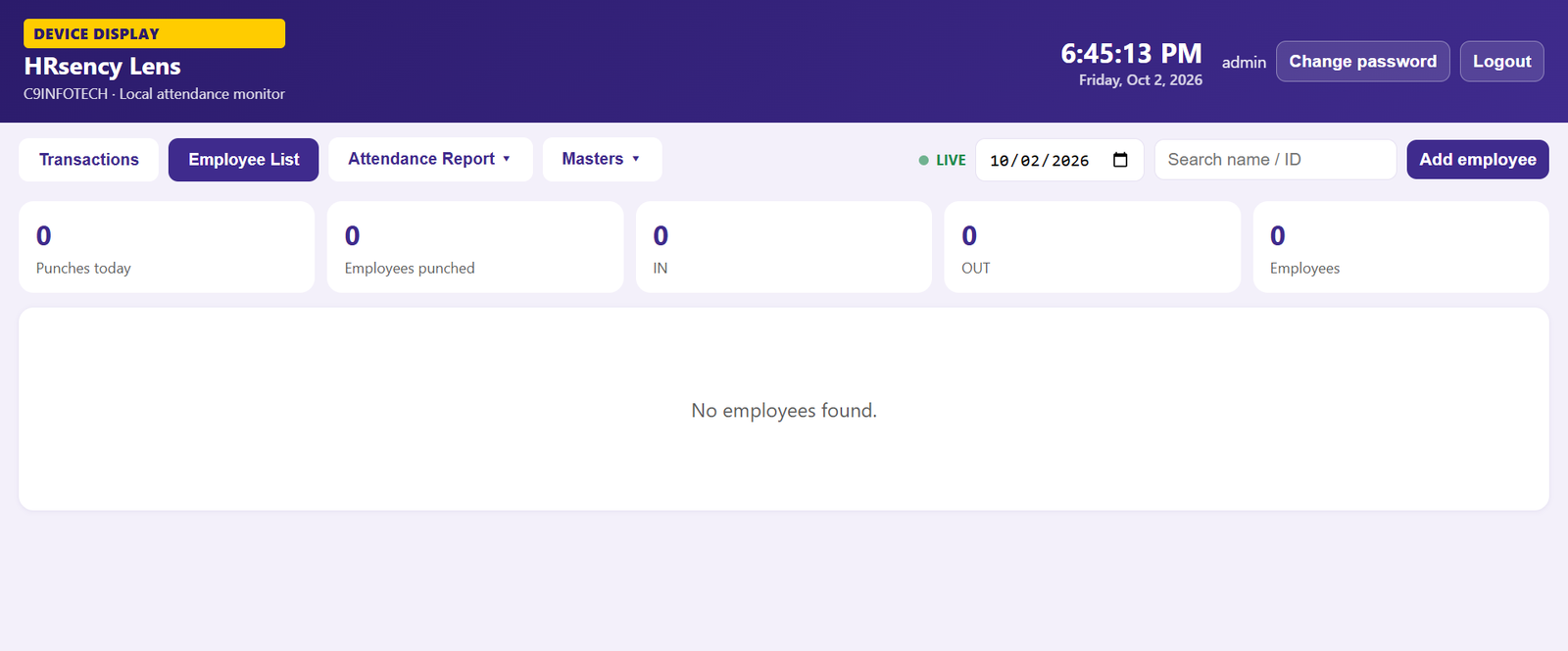
- Tap Change password (next to Logout).
- Enter Current password (
adminif you have not changed it yet). - Enter New password and Confirm new password. At least 4 characters, and both must match.
- Tap Update password.
Next time, sign in with admin and the new password. The username stays admin.
Pages
| Tab | Use |
|---|---|
| Transactions | Punches for the selected date |
| Employee List | People on this device |
| Attendance Report | Daily, monthly, and hourly reports |
| Masters → Shift | Shift times and hour calculation |
| Masters → Shift mapping | Which employee uses which shift |
If the page does not open
- Confirm the notification is still visible.
- Tap Refresh IP in Settings after changing Wi-Fi.
- The browser device must be on the same network as the phone.
- Do not use mobile data on the phone for the kiosk address.
Next: Shifts & hours · Reports.